Facebook Page & Instagram
About 15 minutes the first time, then 1 minute per Page
Postline posts Reels to a Facebook Page and its linked Instagram account. Instagram must be a Professional account linked to the Page. You make your own Facebook app once and add it to Postline; after that every Page connects with one click.
Updated October 30, 2026 for Meta's current app flow
First: link Instagram to the Page
- 1
In the Instagram app: Settings → Account type and tools → Switch to professional account (Creator or Business).
- 2
On Facebook, open your Page → Settings → Linked accounts → Instagram → Connect account, and sign in to Instagram.
- 3
Check at business.facebook.com that the Page and the Instagram account both appear under your business.
Make your Facebook app (once)
Every workspace uses its own Meta app. It works for the people who have a role on it - you and anyone you add - with every permission, no Meta review needed. Follow the current Meta fields below, then switch the app to **Live** before connecting it in Postline.
- 1
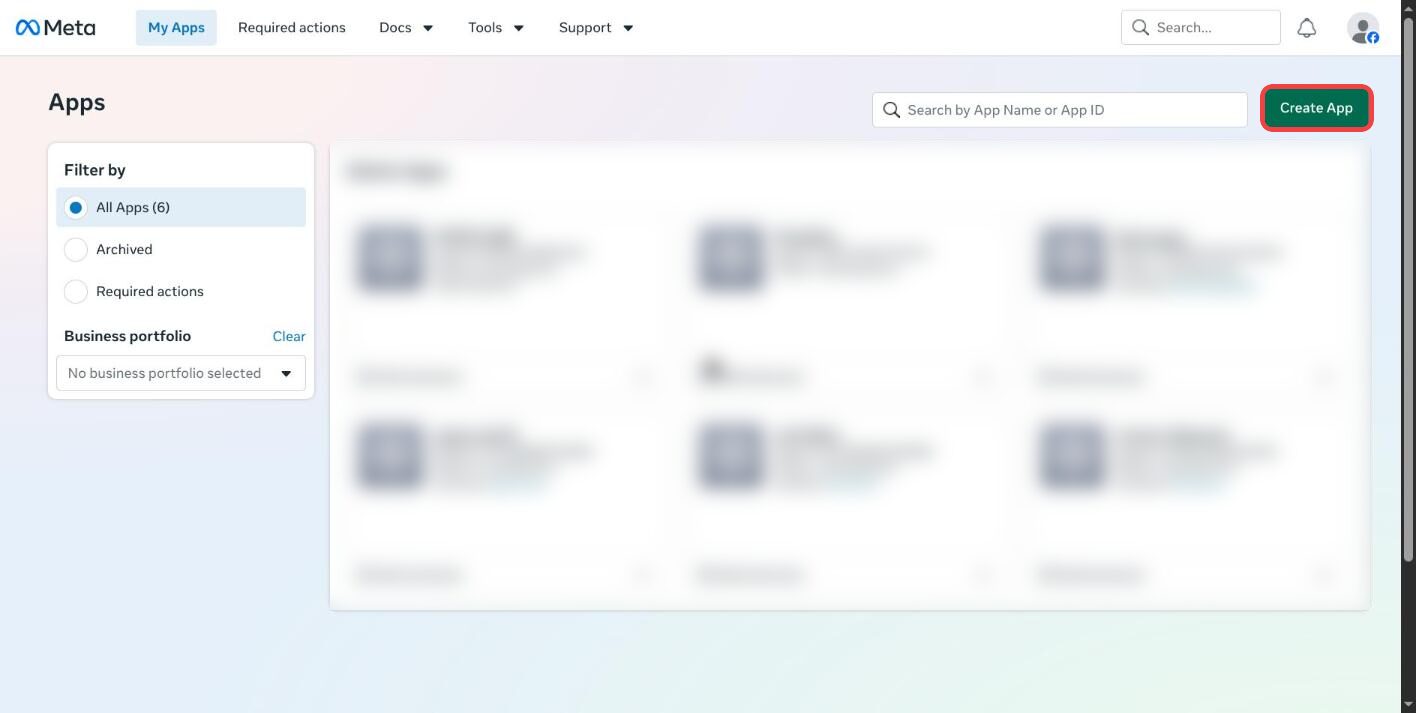
Go to developers.facebook.com/apps with the Facebook account that manages your Pages and click Create App. Choose Others, then Other, then choose Business and continue.
If Meta asks you to verify your email or phone, complete that first. If Other is unavailable, choose Create an app without a use case, then add Facebook Login for Business from Products.
- 2
Name the app
Postline - your name, keep your contact email, leave Business portfolio optional, and click Create app. Submit your Facebook password if Meta asks for it.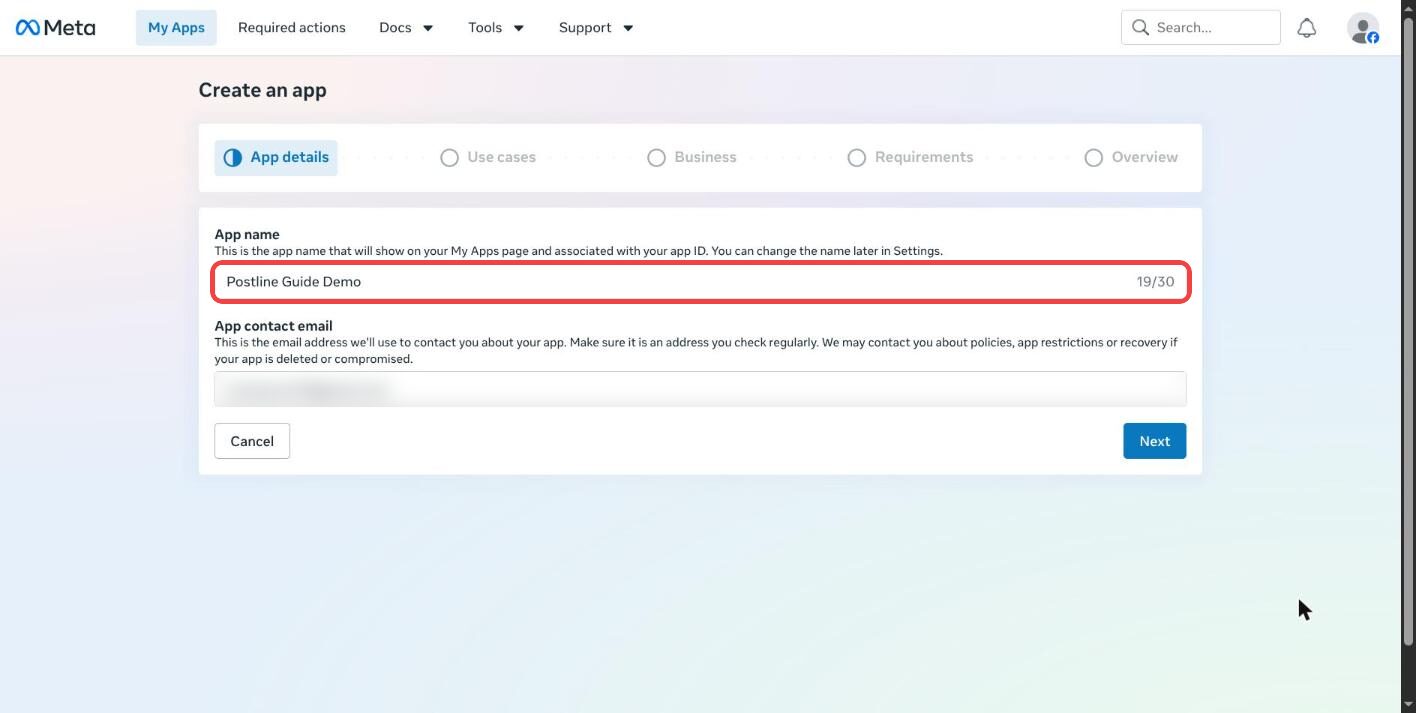
- 3
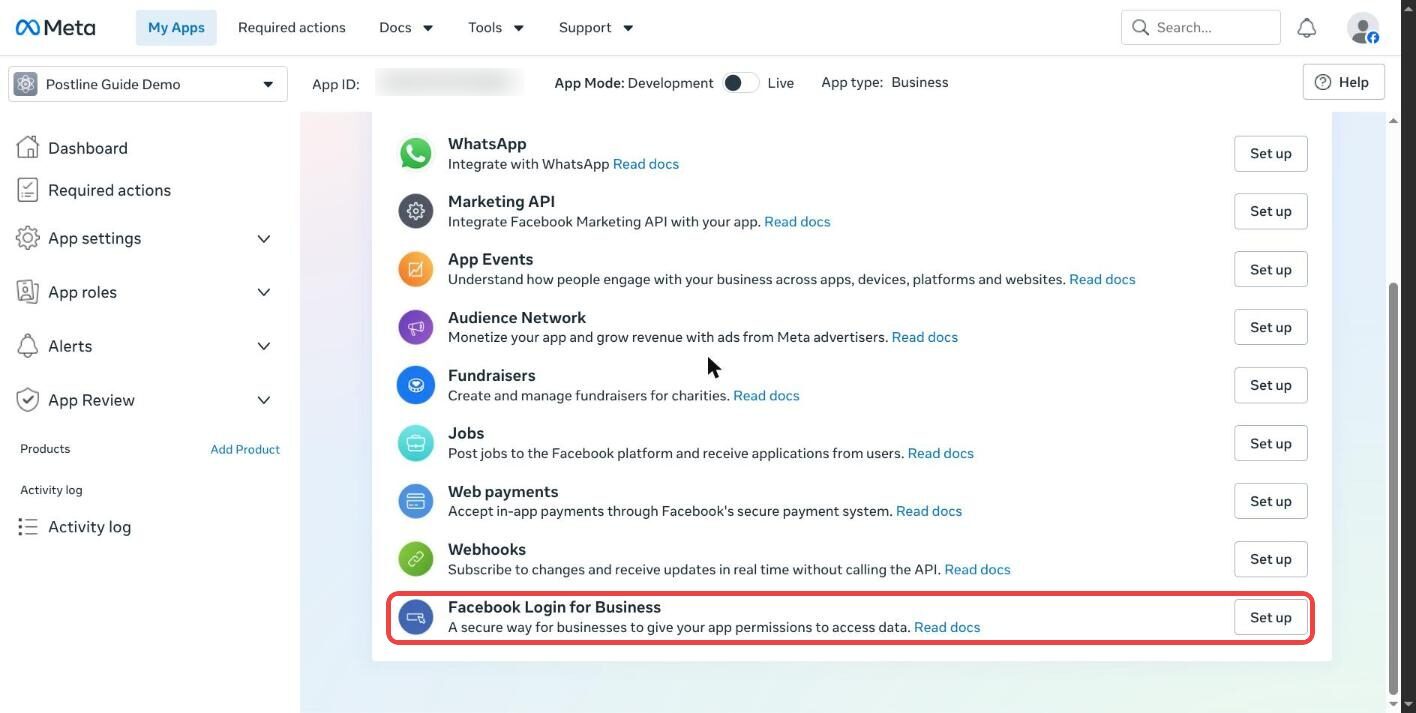
In the products list, find Facebook Login for Business and click Set up, then open its Settings page.
- 4
In Valid OAuth Redirect URIs, paste this exact value and press Enter. It saves when Meta shows Changes saved.
If an old Convex callback is already there, remove it and keep this current Postline callback. The advanced-access notice can be ignored when connecting your own Pages.
FieldValueActionValid OAuth Redirect URIhttps://www.postline.tech/oauth/meta/callbackPaste into Facebook Login for Business → Settings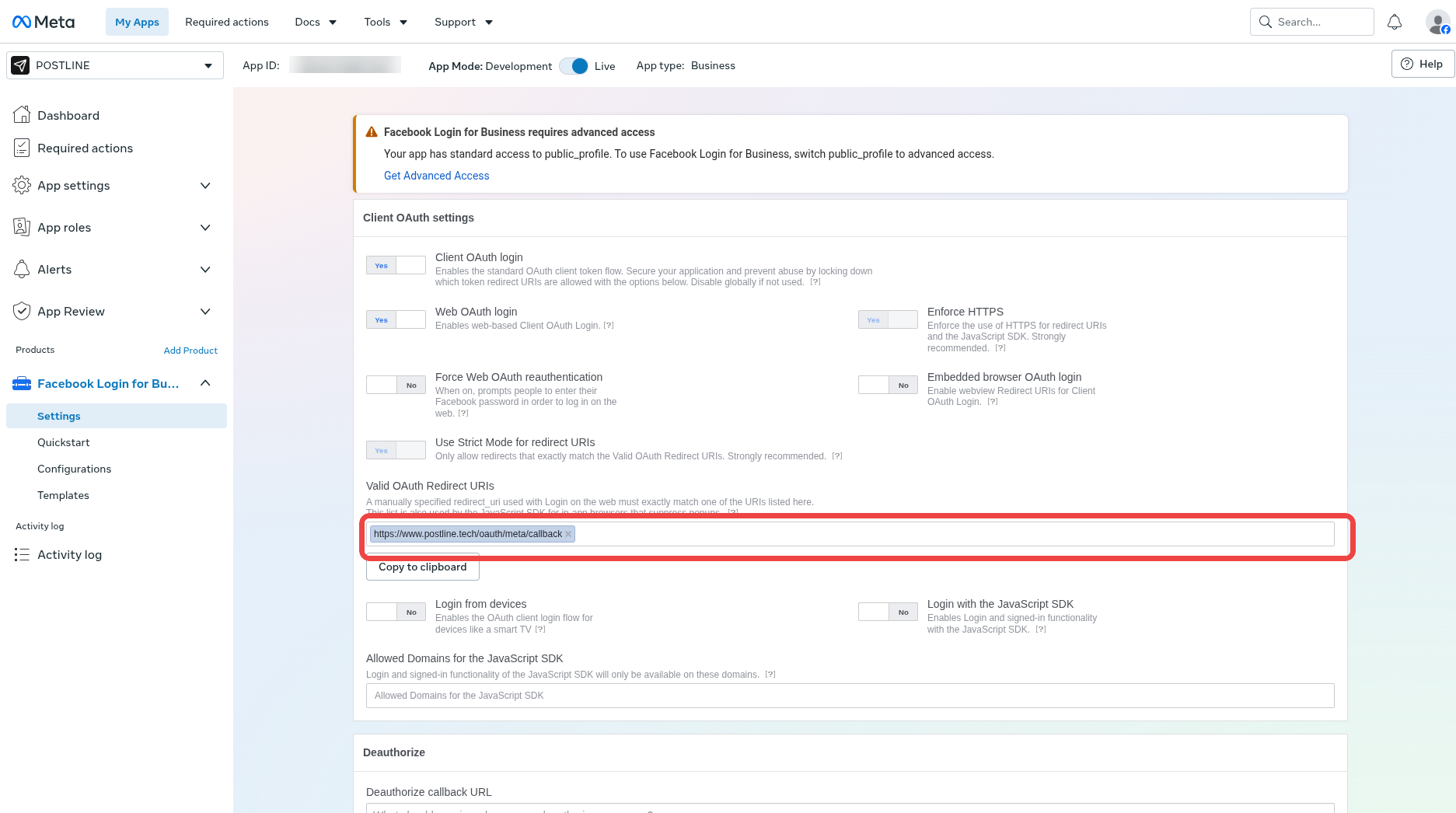
- 5
Open App settings → Basic. Under App domains, add the current Postline domain as a chip.
FieldValueActionApp domainwww.postline.techPaste into App settings → Basic → App domains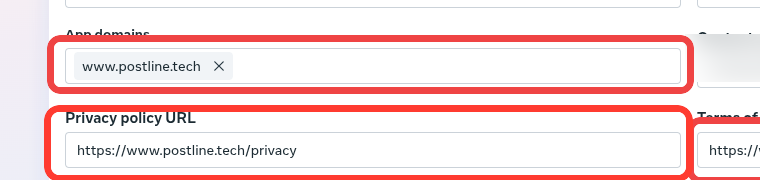
- 6
Still in Basic, paste the public URLs below, choose the category, add an app icon, and click Save Changes. If Meta asks for a website platform, add Website and use the website URL below.
Meta's Basic page only saves with Save Changes. Business verification may appear separately for advanced-access features.
FieldValueActionPrivacy Policy URLhttps://www.postline.tech/privacyTerms of Service URLhttps://www.postline.tech/termsData Deletion Instructions URLhttps://www.postline.tech/data-deletionWebsite URLhttps://www.postline.tech/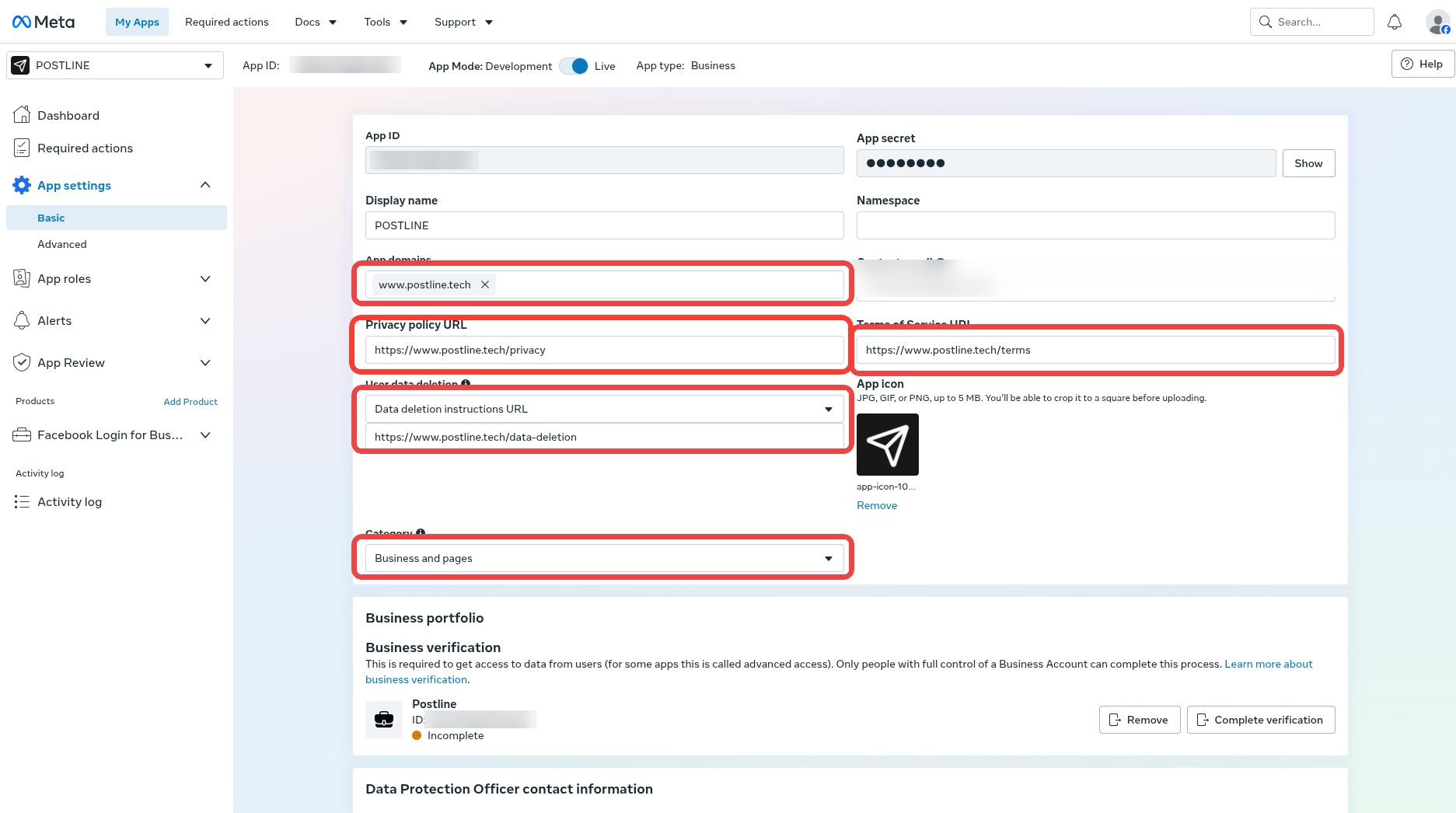
- 7
Open Facebook Login for Business → Configurations → Create configuration. Name it
Postline, choose General, choose User access token, and continue.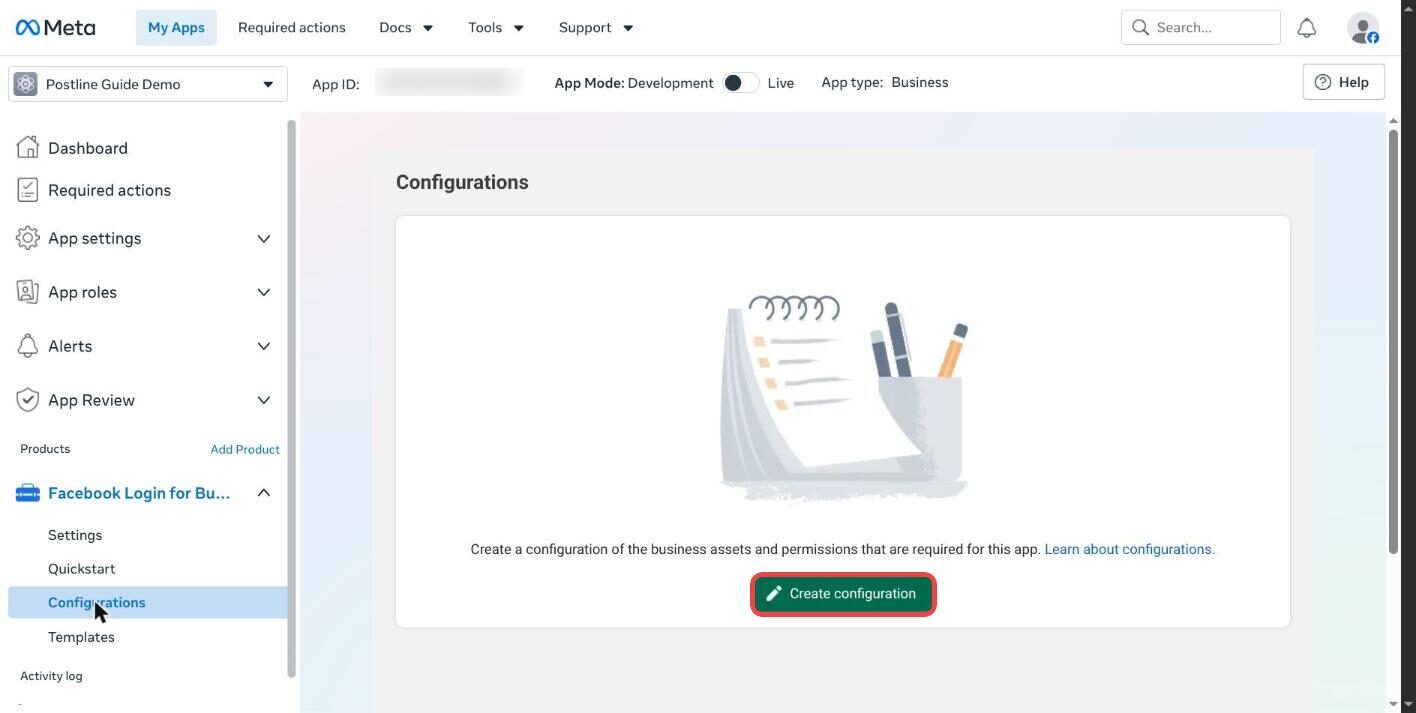
- 8
Permissions: open the list and search and tick each of
pages_show_list,pages_read_engagement,pages_manage_posts,read_insights,business_management,instagram_basic,instagram_content_publish,instagram_manage_insights. It shows 8 options selected. Click Create.Searching
business_managementalso showswhatsapp_business_management- leave that one unticked.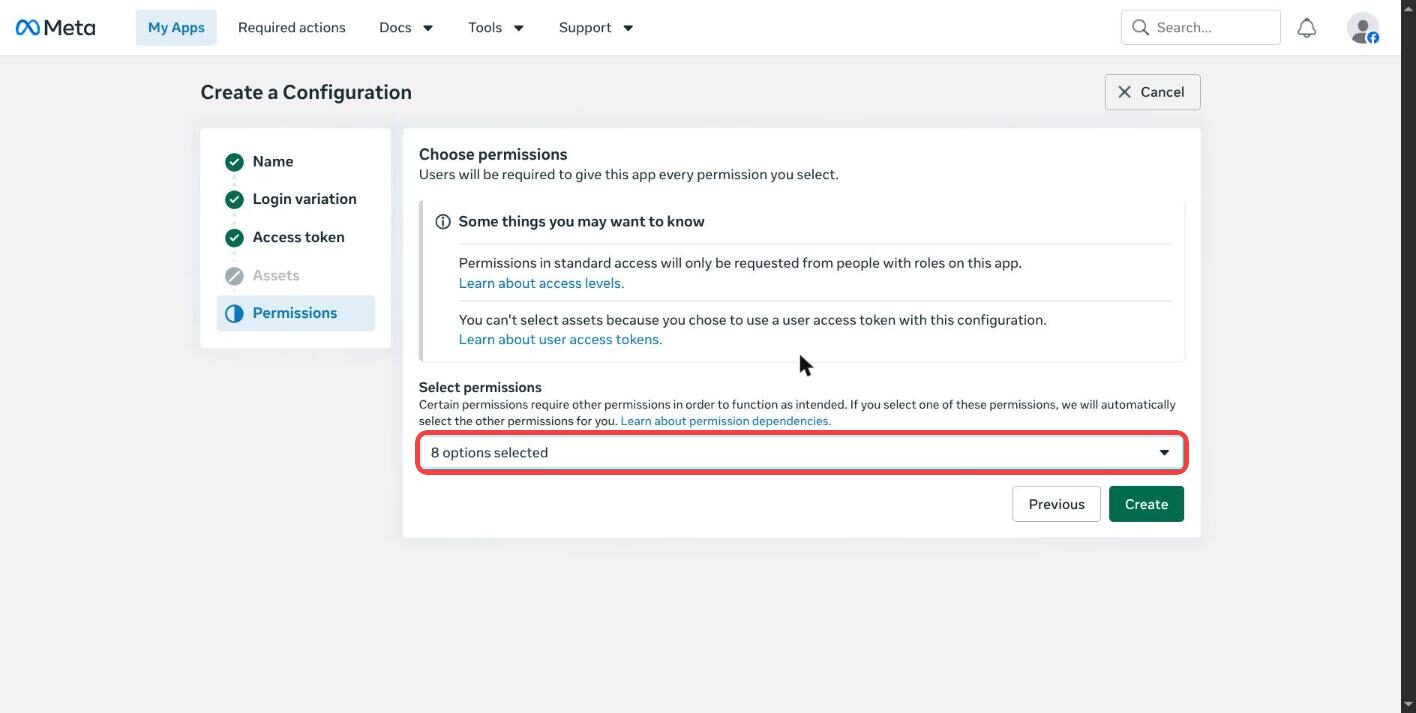
- 9
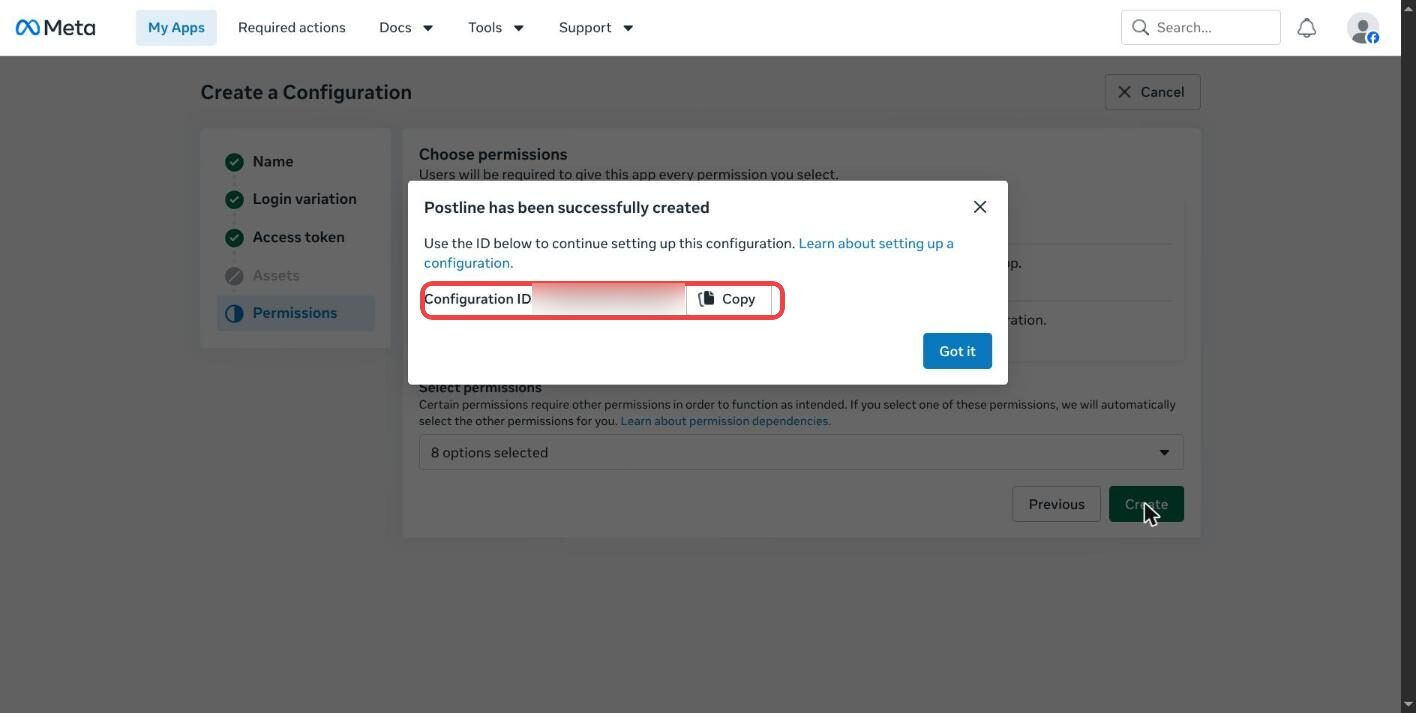
Copy the Configuration ID it shows, then click Got it.
- 10
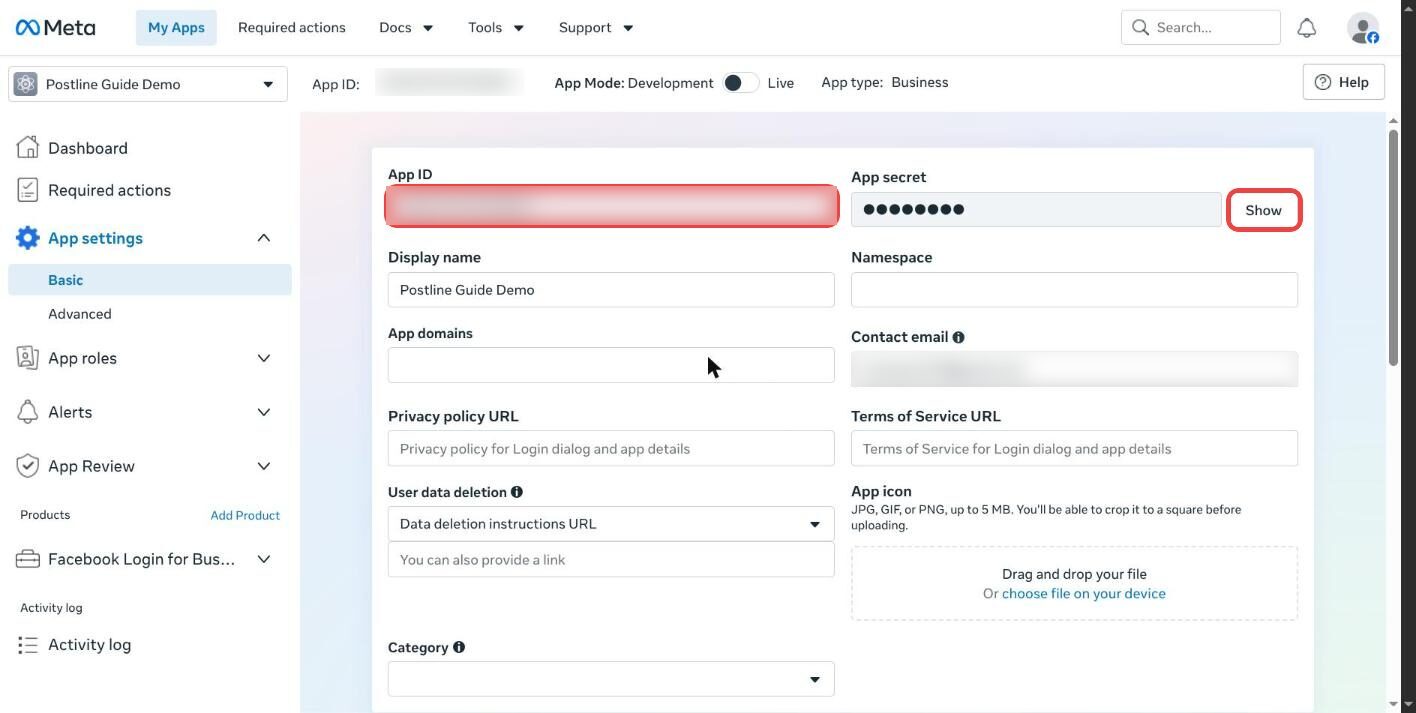
Open App settings → Basic and copy the App ID. Click Show next to App secret and copy that too.
The App secret is a password - paste it only into Postline's Settings.
- 11
Switch the App Mode toggle at the top of the page from Development to Live. No Meta review is needed for your own Pages.
Don't skip this. A Development-mode app still posts and Postline shows the reel as posted, but Facebook hides it from everyone who has no role on the app - the link opens nothing and the reel isn't on the Page for your audience.

Add the app to Postline
- 1
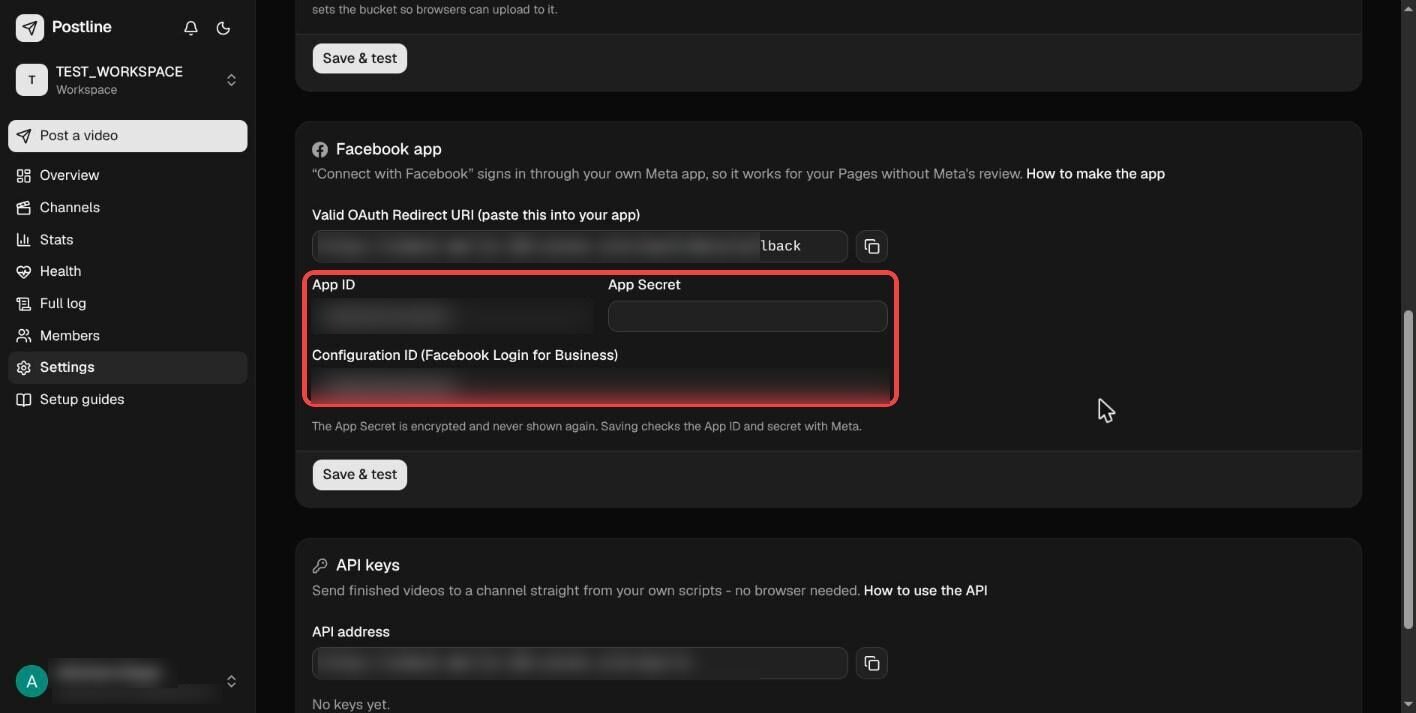
Postline → Settings → Facebook app → Use my own app.
- 2
Paste the App ID, App Secret and Configuration ID, and click Save & test. You see the app's name with a green check.
- 3
Teammates who connect Pages with their own Facebook login need a role on the app: developers.facebook.com → your app → App roles → Roles → Add people (Administrator or Tester). They accept at developers.facebook.com/requests.
If the Page is in someone else's business
Skip this if your own Facebook account already manages the Page. Otherwise the Page owner invites you into their business first.
- 1
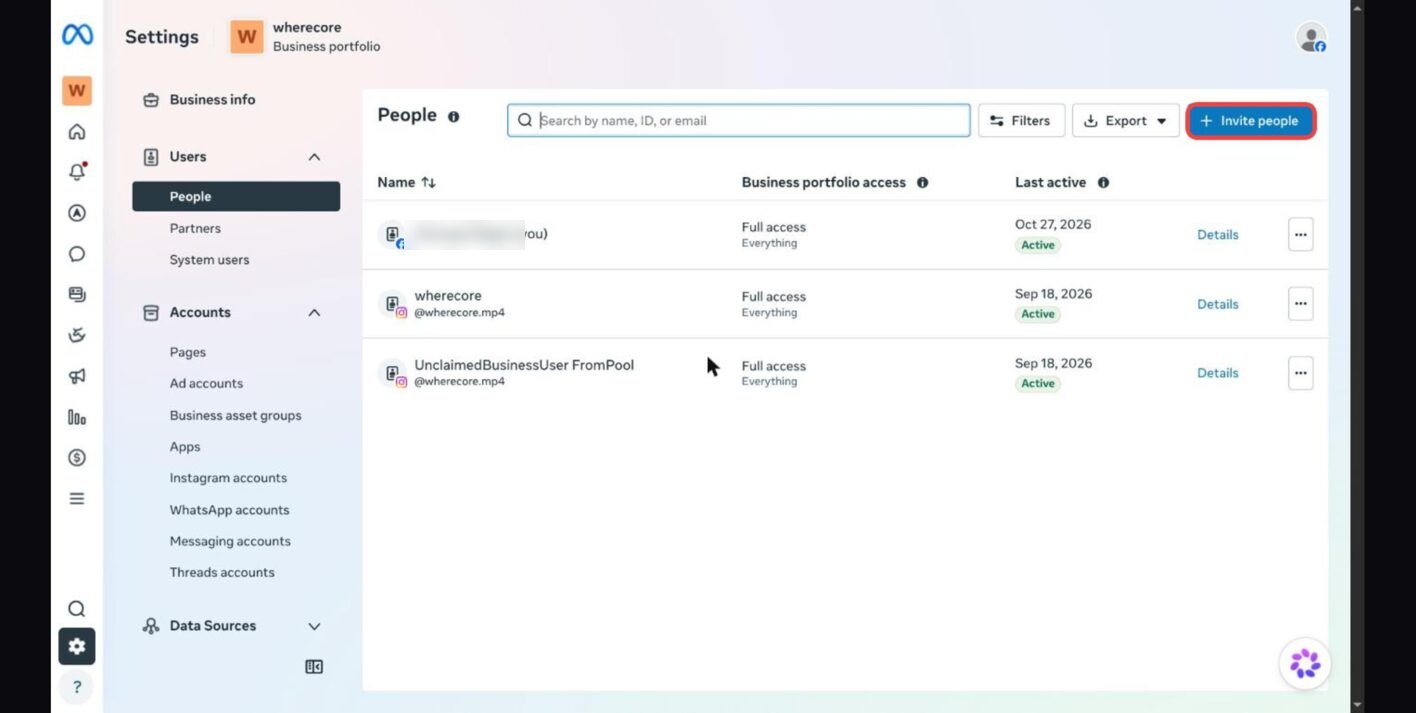
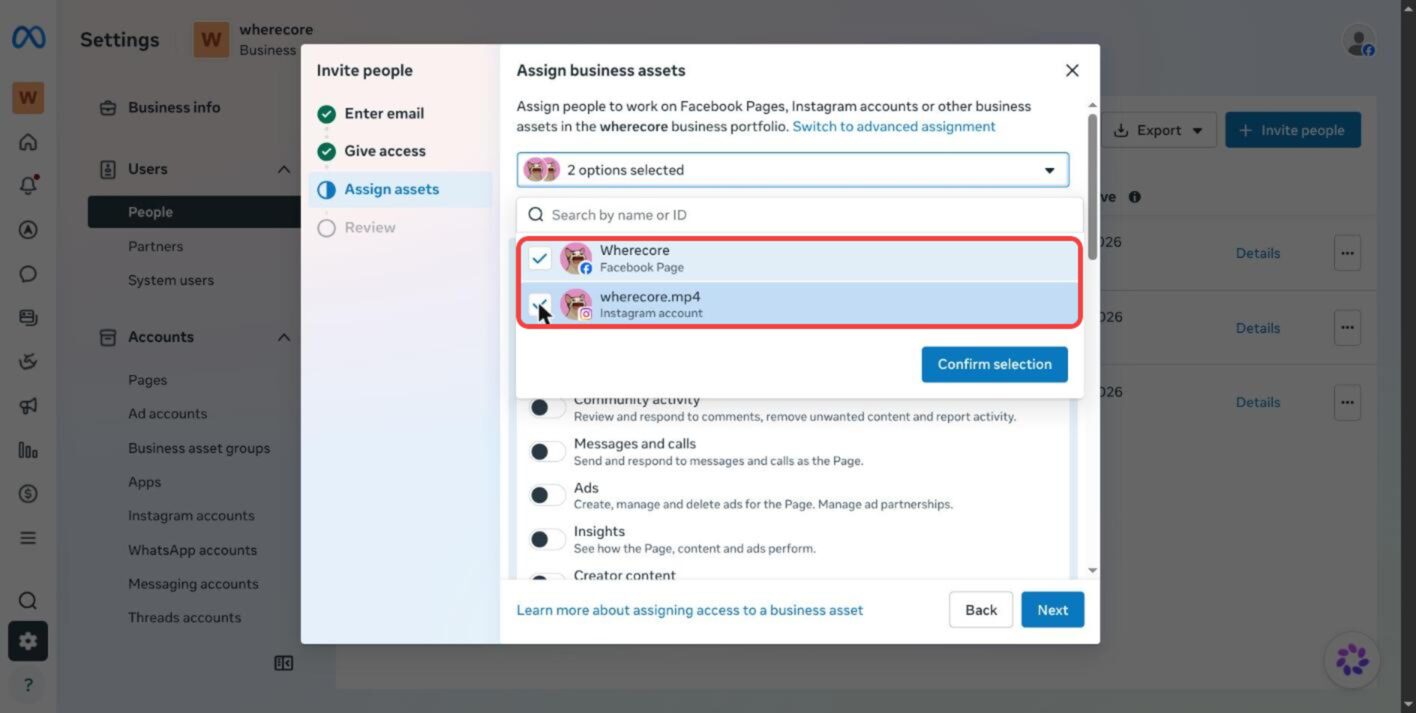
The Page owner opens business.facebook.com/settings → Users → People and clicks Invite people.
- 2
They type your email, choose Full access → Manage, assign the Page and Instagram account with Full access → Everything, review, and click Invite.
- 3
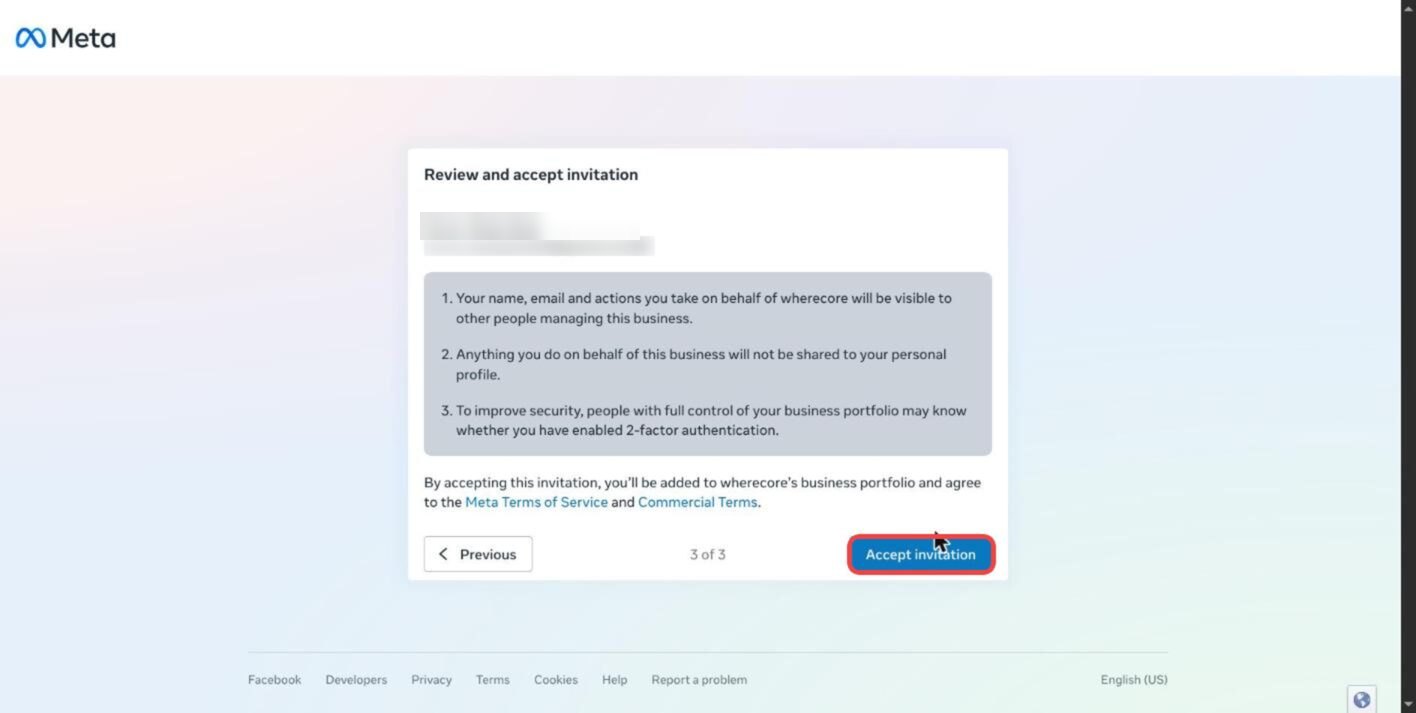
Open the email invitation, click Log in to view invitation, then Continue with Facebook and Accept invitation.
“You're already in the Business Portfolio” means you're signed in as the owner. Switch Facebook accounts and open the email link again.
Connect a Page
- 1
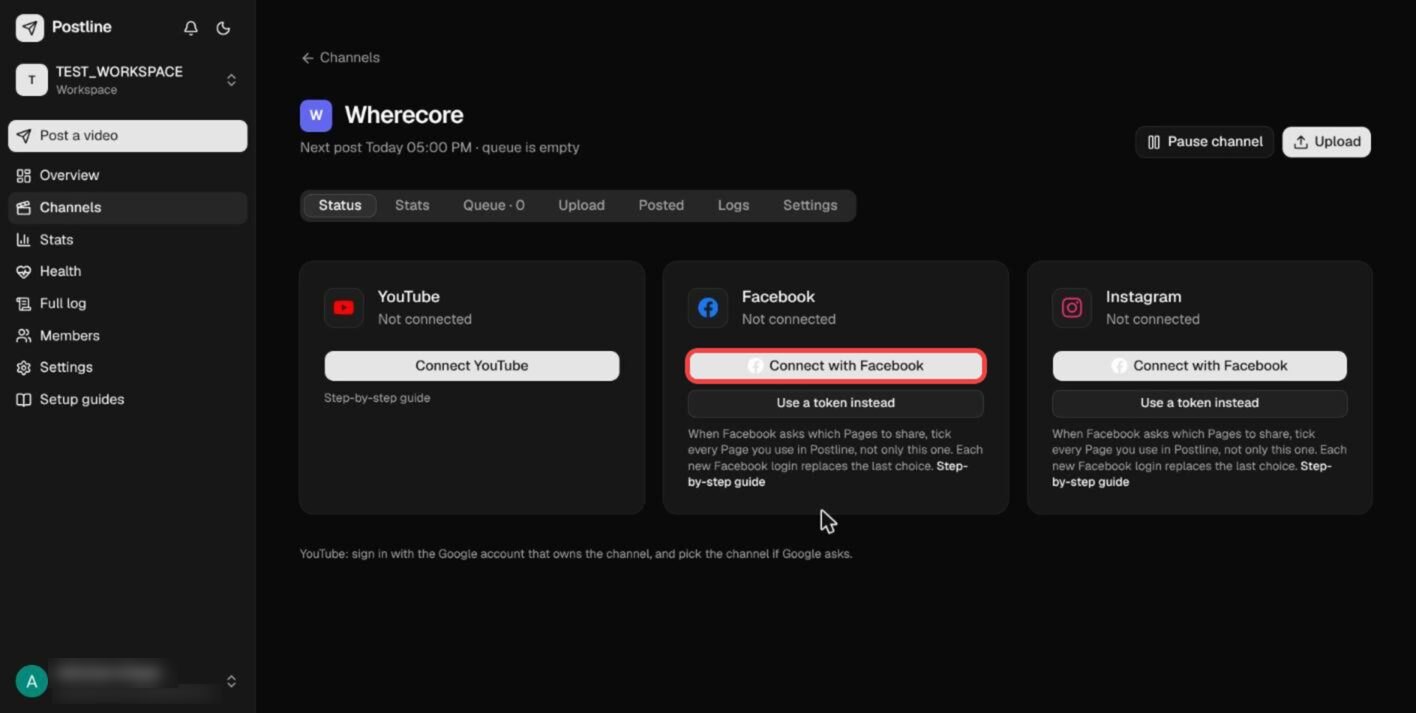
In Postline make a channel for the Page, then on its Status tab click Connect with Facebook.
- 2
Sign in with your Facebook account (the one that made the app or has a role on it) and click Continue.
- 3
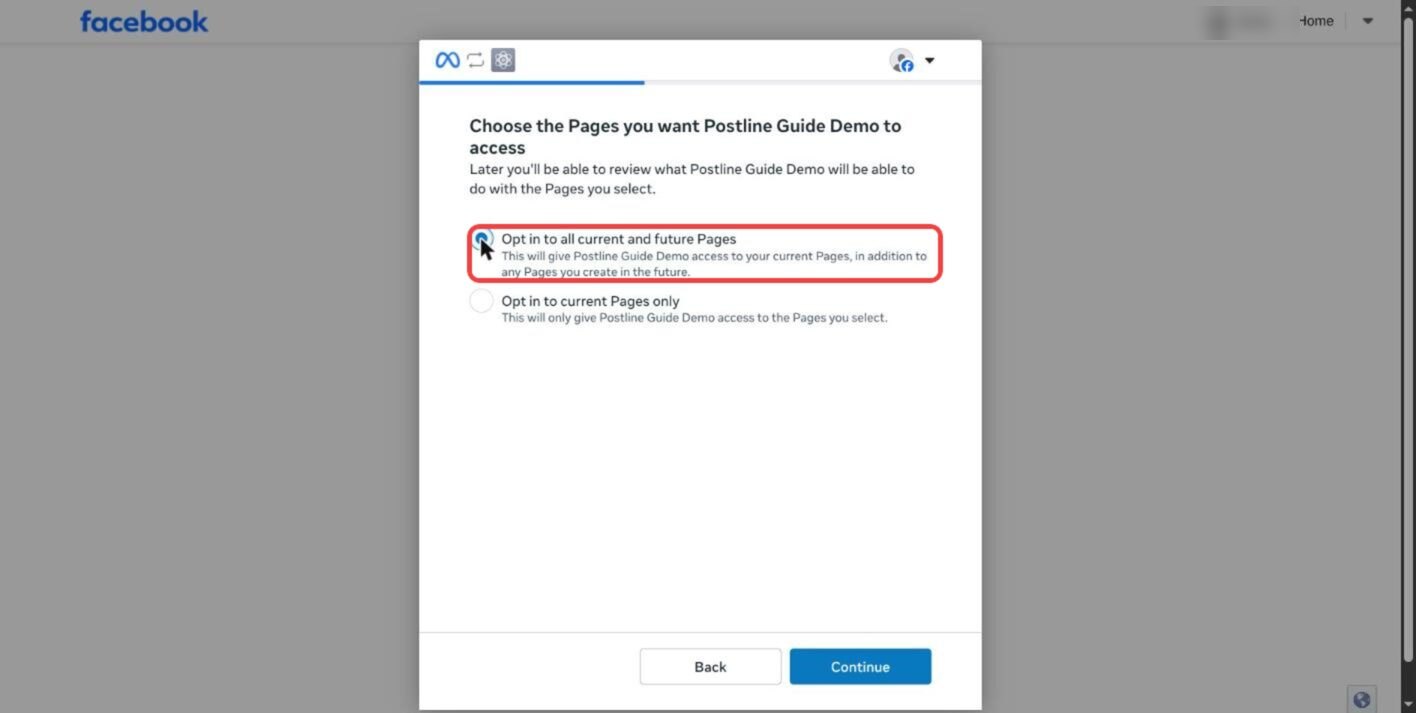
On the Pages, Businesses and Instagram screens choose the top option, Opt in to all current and future, each time.
Each new Facebook login replaces the last choice. “All current and future” keeps every Page you use in Postline working.
- 4
Review the permissions, click Save, then Got it.
- 5
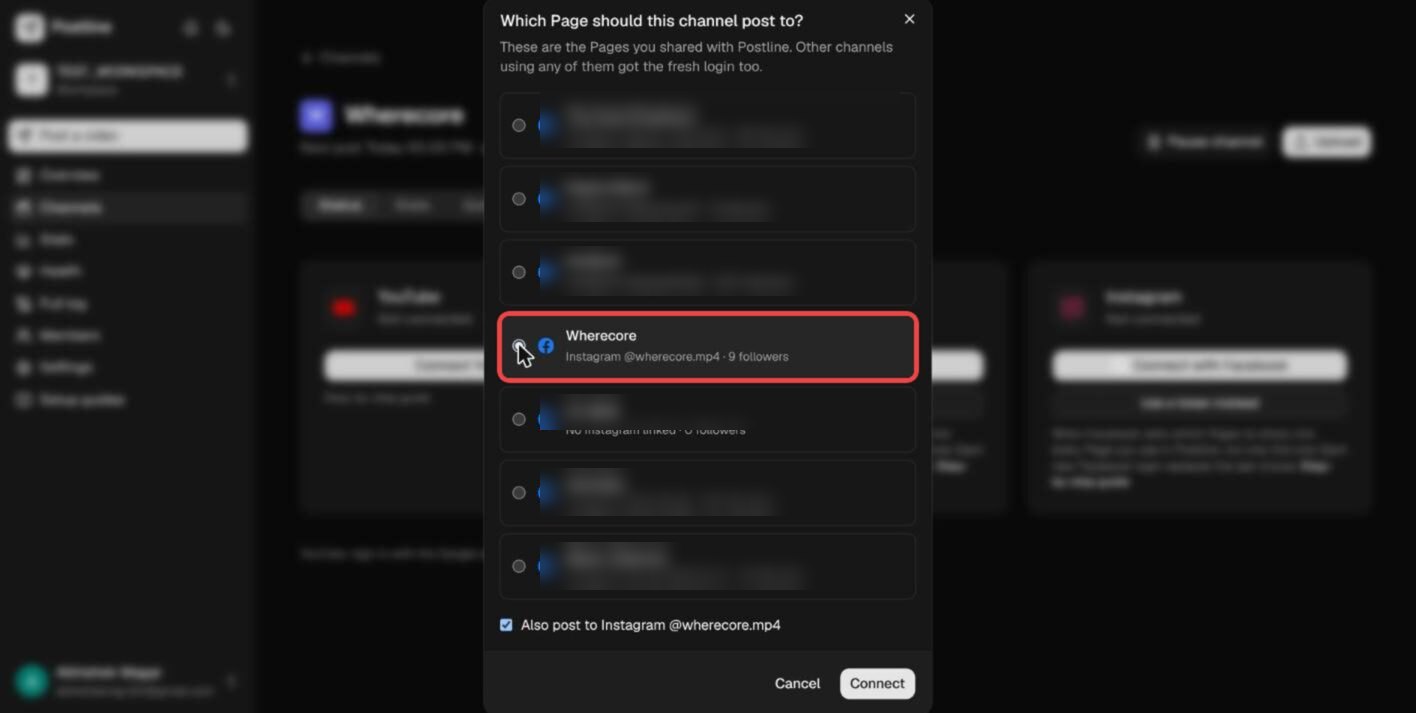
Back in Postline, pick this channel's Page, keep Also post to Instagram ticked, and click Connect.
- 6
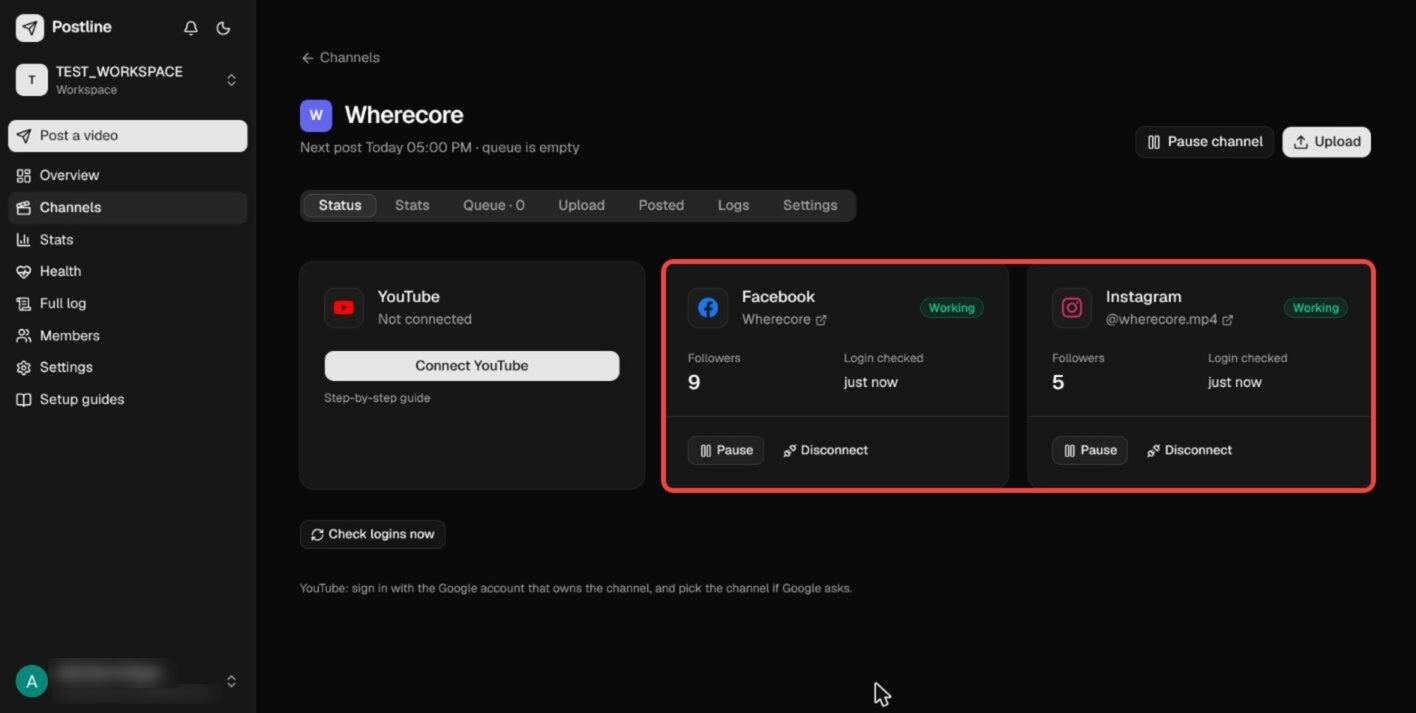
Facebook and Instagram show Working. The Page's key never expires.
Advanced: a system-user key instead of signing in
For a Page whose Facebook account can't sign in to your app. You make a system user in your business portfolio and a key that never expires and only touches the Pages you assign - then paste it with “Use a token instead”.
- 1
Go to developers.facebook.com and click Get started. Facebook asks to verify a phone number once.
No phone verification possible? Have a friend whose Facebook is developer-verified do steps 2-4: invite them into your business portfolio first (Business settings → Users → People → Add, full control).
- 2
Click My Apps → Create app. Name it (e.g.
Postline - My Page) and add your contact email. - 3
Use cases: filter Content management, tick Manage everything on your Page and Manage messaging & content on Instagram. Click Next.
- 4
Business: choose the business portfolio that owns the Page. Click Next, then Create app.
- 5
In the app: Use cases → Customize on each use case and make sure these permissions are Added:
pages_show_list,pages_read_engagement,pages_manage_posts,read_insights,business_management,instagram_basic,instagram_content_publish,instagram_manage_insights. - 6
Open business.facebook.com/settings → Users → System users → Add. Name:
postline, role: Admin.A brand-new business portfolio must be 7 days old before it can have an Admin system user. If “Add” is greyed out, create the app (steps 2-4) first.
- 7
With the system user selected, click Assign assets: under Pages pick your Page → Full control; under Instagram accounts pick the account → Full control; under Apps pick your app → Full control. Save.
- 8
Click Generate token. App: your app. Token expiration: Never. Tick all eight permissions from step 5. Click Generate token and copy it.
- 9
In Postline: channel → Status → Use a token instead, paste the key and click Check. Postline shows the Page and Instagram it found.
- 10
Pick the Page, keep Instagram ticked, and click Connect.
If something goes wrong
- “App not active” after clicking Connect with Facebook
- The Facebook account you signed in with has no role on your app. Sign in with the account that made the app, or add this one under App roles → Roles and accept the invite at developers.facebook.com/requests.
- “URL blocked” or “redirect URI isn't whitelisted”
- The Valid OAuth Redirect URI in your app doesn't match. Copy the current value from Postline → Settings → Facebook app and replace the old entry under Facebook Login for Business → Settings, then Save changes. Also confirm App domains contains
www.postline.tech. - The app connects, but nobody else can see the posts
- The Meta app is still in Development mode. Complete the Basic settings, then switch App Mode from Development to Live. Keep the app's privacy policy, terms, data-deletion URL, category and icon filled in.
- “Meta didn't accept this App ID and App Secret”
- Copy both again from App settings → Basic. Clicking “Reset” on the secret makes the old one stop working.
- My Page isn't in the list after signing in
- You didn't tick it on Facebook's “choose Pages” screen, or your account isn't an admin of that Page. Click Connect with Facebook again and tick every Page you use.
- “No permissions available” when generating the token (advanced)
- The system user isn't an Admin, or the app isn't assigned to it. New portfolios must wait 7 days for Admin system users; until then use the one-click Connect.
- “Permission isn't added to your app”
- App dashboard → Use cases → Customize → Add the missing permission (step 5), then generate the token again.
- Facebook posts work but Instagram fails
- Instagram must be Professional and linked to that exact Page (first part above), and the system user needs the Instagram account assigned.
- Remove Postline's access
- Disconnect on the Status tab, then Facebook → Settings → Business integrations → Postline → Remove.